
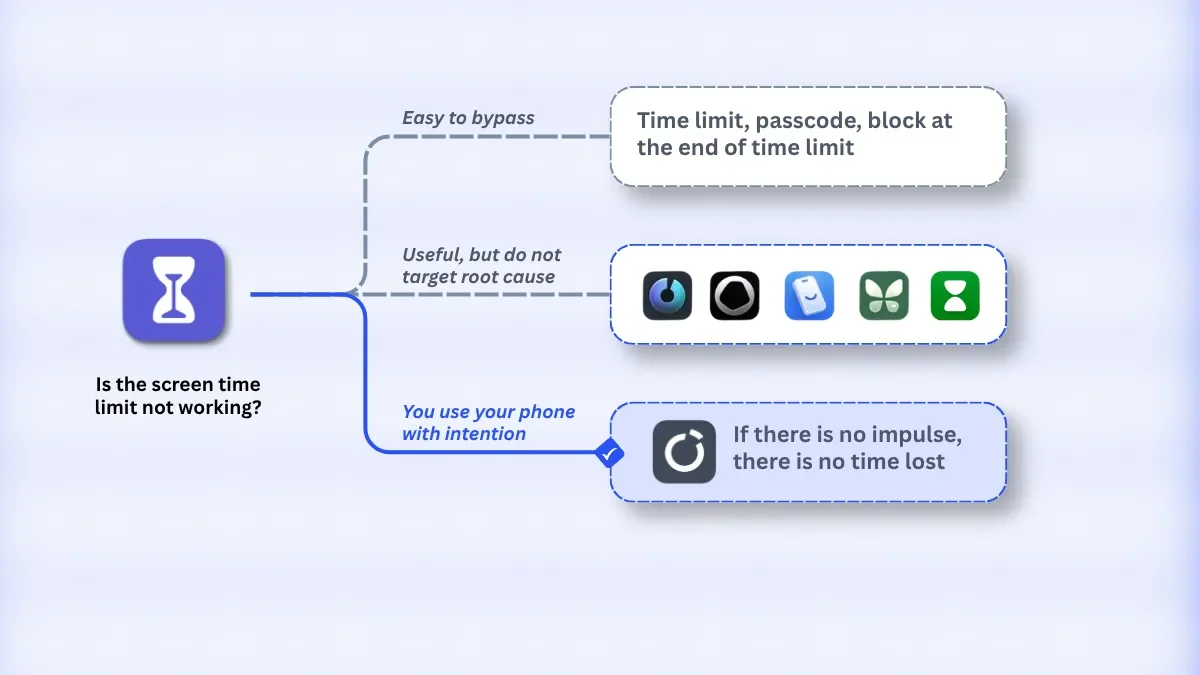
Apple's own iOS 26 guide says it plainly: "By default, Screen Time limits can be ignored once reached." Ignore Limit isn't a bug. It's the default, because Screen Time assumes the person setting the limit and the person living with it might be the same.
Removing the button is easy. The trouble is that a self-set limit has three exits, and most guides only close the first one:
1. The button: "Ignore Limit for Today" on the limit screen.
2. The passcode you know: if you set the code, you can type it.
3. The recovery route: if the code can be reset with your own Apple Account, you can get around it anyway.
Here's how to close all three, and then why you might not want to rely on them alone.
Too long, don't want to read:
- iOS 27: Settings → Screen Time → Passcode & Management → Lock Screen Time Settings. Let someone else type the code, and use their Apple Account for Passcode Recovery.
- iOS 26 and earlier: Settings → Screen Time → Lock Screen Time Settings, then turn on Block at End of Limit on every App Limit (and Block at Downtime).
- Then: handle the urge before you reach the limit screen. That's where EMBO comes in.
What the limit screen actually offers
On iOS 26 and earlier, with no passcode, the limit screen gives you three options:
One More Minute: 60 seconds to finish what you're doing.
Remind Me in 15 Minutes: you're back in, and the screen returns in 15 minutes.
Ignore Limit for Today: the limit is off until midnight. Two taps.
With a passcode and Block at End of Limit, the screen offers Ask For More Time instead: one extra minute, and after that the passcode is required.
On iOS 27, Apple replaced App Limits with Time Allowances and Downtime with Screen Time Schedule. Apple's iOS 27 guide doesn't describe exactly what you see when a self-set allowance runs out, and early hands-on reports say an option to keep going still appears. The safest assumption is that without a passcode, a way past the limit is still there. The fix that Apple does document is the Screen Time passcode.
Exit 1: remove the button
On iOS 27
1. Open Settings → Screen Time → Passcode & Management.
2. Tap Lock Screen Time Settings and enter a four-digit code twice (not your phone passcode).
3. Apple then offers Screen Time Passcode Recovery. Read Exit 3 before you fill it in.
Apple describes the passcode as one you "must enter before changing Screen Time settings you selected for yourself." Allowances, schedules and the Always Allowed list are now behind the code.
On iOS 26 and earlier, set a Screen Time passcode under Settings → Screen Time → Lock Screen Time Settings, then turn on Block at End of Limit for every App Limit and Block at Downtime under Downtime. Remove anything you don't need from Always Allowed, then test with a one-minute limit: if Ignore Limit still appears, a switch was missed.
Exit 2: the passcode you know
This is the exit almost everyone leaves open. If you chose the code, you've just moved the button one step further away. At 11 p.m. you'll type four digits instead of tapping once, and the code that took you a minute to set takes two seconds to type.
The fix is simple and a little awkward: let someone else type the code without showing you. A partner, a roommate, a friend you see often.
A few tips that make the arrangement last:
Agree on the rules in advance. For example: "If I message you for the code, ask me why first. Work and family are fine, 'just bored' isn't."
Pick someone you can reach. A friend in another time zone turns a reasonable request into a lockout.
Don't treat it as a punishment. You're not asking someone to police you. You're asking them to hold a key.
Exit 3: the recovery loophole
When you set a Screen Time passcode on iOS 27, Apple recommends adding Screen Time Passcode Recovery with an Apple Account. Apple's support pages make an important point: to reset a forgotten code, "you must use the same account you entered when you first set up the Screen Time Passcode Recovery."
That's the key detail. If you enter your own Apple Account, you can reset the code any time you like, and Exit 2 is open again. If your passcode holder enters their Apple Account for recovery, a reset needs them too.
A practical setup is to hand the phone to your passcode holder at the Lock Screen Time Settings step. They enter the four-digit code, and their own Apple Account email and password for recovery. You get the phone back without knowing either.
What it costs to close every exit
With all three exits closed, a limit truly holds. It's worth being honest about what that costs:
Every exception involves another person. Running late and need Maps on a blocked category? You'll be texting someone.
It only blocks. The urge to pick up the phone stays the same. You still reach for it, and every time you hit a wall.
Frustration builds up. People who feel caged by their own settings tend to dismantle them, often during a weekend "reset" that never gets reversed.
Research on phone habits suggests a gentler approach. A 2023 PNAS study of 280 people found that interrupting them at the moment they tried to open a target app led them to give up 36% of those openings. Over six weeks, actual openings fell by 57%. In a follow-up experiment, the most effective part was offering people the option to dismiss the opening. A short wait helped too, while a warning message didn't.
In other words, a well-timed choice did more than a lecture. That's the principle EMBO builds on.
Don't reach the limit screen in the first place
The Ignore Limit button only tempts you once you're at the end of an allowance, already deep in a scroll. EMBO steps in earlier.
1. In the EMBO app, flag the apps that drain your allowance, and set goals for screen time, pickups and EMBO breaks.
2. When you open one out of habit, a shield redirects you to your EMBO device.
3. You hold EMBO. Its gentle pulses, at a heartbeat-like 1–2 Hz rhythm, target the median nerve in your palm. Stimulating that nerve has been linked to calming parasympathetic activity, so the urge has a chance to fade instead of being fought.
4. If you still want the app afterward, you can open it. It's your choice, not a reflex.
The two work well together. Keep the passcode as a hard ceiling for the days that go sideways, and use EMBO for the many ordinary reaches that would otherwise use up your allowance by lunchtime. We recommend about 10 days of consistent use for the medium-term effect, though results vary from person to person.
The bottom line
To really remove Ignore Limit, close all three exits: set the passcode (under Passcode & Management on iOS 27, plus Block at End of Limit on iOS 26), let someone else hold the code, and make their Apple Account the recovery account. Then lower the pressure on that lock by dealing with the urge earlier. A limit you rarely reach is the one that lasts.
Fix the Brainrot, Regain your Focus
EMBO is the tool that targets the root cause driving your screen time in TikTok. It helps you to understand the impulse, and surf it when the urge to scroll comes
Frequently Asked Questions:
-
Set a Screen Time passcode. On iOS 27 it's under Settings → Screen Time → Passcode & Management → Lock Screen Time Settings. On iOS 26 and earlier, set the code under Lock Screen Time Settings and turn on Block at End of Limit for each App Limit. For it to actually hold, someone else should know the code.
-
iOS 27 replaced App Limits with Time Allowances, and Apple's iOS 27 guide doesn't mention Block at End of Limit. The setting Apple documents for keeping your limits in place is the Screen Time passcode under Passcode & Management.
-
There's no switch that removes it. With a passcode and Block at End of Limit (iOS 26), the extra minute becomes the last one, and after that the passcode is required.
-
Only with the Apple Account entered for Screen Time Passcode Recovery. Apple says you must use the same account that was entered at setup. If your passcode holder used their account, a reset needs them.
-
Yes. Flag the apps that use up your allowance in the EMBO app. Opening them on impulse redirects you to your EMBO device for a short break, so you reach the limit screen far less often, and you're in a calmer state when you do.
Sources
Apple Support, Create, change, or remove a Screen Time passcode on iPhone, How to create a Screen Time passcode and Change your Screen Time passcode
Apple Support, Set Screen Time Schedules and Time Allowances on iPhone
Limit Apps, Screen Time Ignore Limit, and Bedline, Screen Time "One More Minute" (iOS 26 behavior)
Grüning, Riedel & Lorenz-Spreen (2023), Directing smartphone use through the self-nudge app one sec, PNAS
AUTHOR
Alonso Arribas
Founder and CEO, EMBO
Alonso is the founder of EMBO. He holds a Bachelor in Biomedical Engineering from University of Maryland and University Carlos III, and has actively taken part in the end-to-end design and production of EMBO, both the physical device and the app.
