
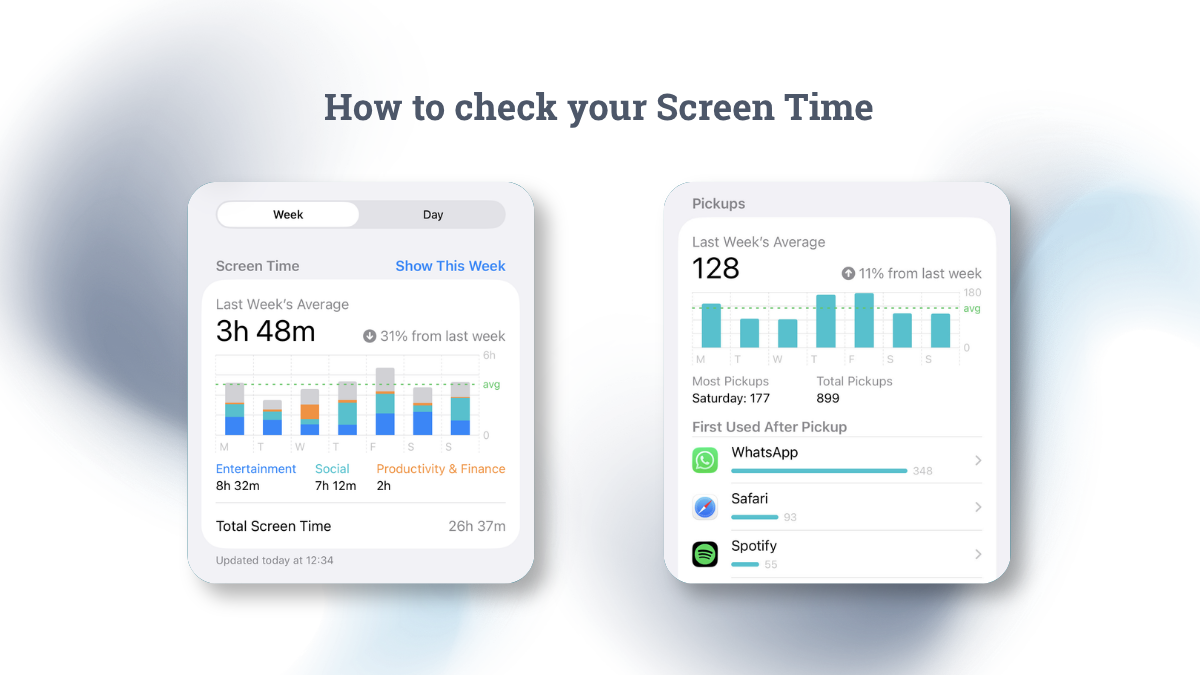
Finding your screen time takes about a minute. Changing it takes something the report can't do. Most people check the number, feel a jolt of resolve, set a limit, and are back to the same habit within two weeks.
This guide covers how to check screen time on iPhone and Android, how to read the report properly, and what to do when the number alone doesn't move.
Too long, don't want to read:
- iPhone: Settings → Screen Time. Tap See All App & Website Activity for the full breakdown.
- Android: Settings → Digital Wellbeing & parental controls (Samsung and Pixel paths differ slightly).
- Read unlocks and pickups, not only the daily total. Eight hours in four sittings is a different habit from eight hours across two hundred pickups.
- Checking rarely changes behaviour. Pair awareness with a limit that holds, and with EMBO for the impulse opens in between.
How to check screen time on iPhone
1. Open Settings.
2. Tap Screen Time. Your daily total sits near the top.
3. Tap See All App & Website Activity for the full breakdown.
4. Switch between Day and Week, or pick a device if Share Across Devices is on.
If Screen Time has never been switched on, tap Turn On App & Website Activity first. Nothing is recorded before that moment.
Two shortcuts that help you check regularly:
Add a Screen Time widget to your Home Screen.
Open Apple's Weekly Report notification when it arrives (it also sits in Notification Centre if you dismissed it).
One quirk: activity iOS can't categorise shows up grey in the summary, so part of your total may have no app name attached.
On a Mac, open System Settings → Screen Time. Reports sync with your iPhone and iPad if you use the same Apple Account and Share Across Devices is on.
How to check screen time on Android
The feature is called Digital Wellbeing on every Android phone. Where it sits depends on the manufacturer.
Pixel / stock Android: Settings → Digital Wellbeing & parental controls. You get a circle chart of today's usage. Tap the centre for a bar graph.
Samsung: Settings → Digital Wellbeing and parental controls. Opens to a bar graph with most-used apps underneath. The weekly icon (four vertical lines) shows your daily average.
Xiaomi / HyperOS: the same idea, sometimes renamed Healthy device usage, with per-app timers on newer builds.
Whichever phone you have, the dashboard usually reports four things: total screen-on time, time per app, unlocks, and notifications.
How to read the report (the total is the least useful number)
Four figures under the headline total tell you more:
1. Unlock / pickup count
Eight hours across four sittings is a different habit from eight hours across two hundred pickups. The second pattern fragments attention all day. If your unlock count is high, the problem isn't only "too many minutes." It's too many reaches.
2. Notifications per app
This shows which apps initiate contact. Those are often the ones to quiet first, before you touch daily limits.
3. Time per app (with a browser caveat)
Browser time is logged against the browser. Three hours in Chrome appear as three hours in Chrome, with nothing about which sites ate them. If most of your usage is web-based, pair this report with a website block for the sites that matter.
4. History depth
iPhone lets you swipe back through past weeks. Stock Android and Pixel keep roughly two weeks; Samsung often keeps about one. Note the figures down if you plan to turn tracking off later.
What counts as "high" screen time?
There is no single healthy number that fits everyone. A practical test is whether the hours are eating into sleep, movement, work or time with people.
For context, CDC data from July 2021 to December 2023 found that 50.4% of U.S. teenagers aged 12–17 reported four or more hours of daily screen time outside schoolwork. That makes four hours a common teenage figure, not an extreme one, and still a useful checkpoint if those hours are displacing sleep.
Five hours on a day off looks different from five hours across a working Tuesday. Judge the trade-offs, not the vanity total.
Why checking your screen time rarely changes it
Both platforms offer limits next to the report. Apple has App Limits / Time Allowances. Android has Focus mode and app timers. Both work for as long as you want them to.
When an iPhone limit runs out, you often get Ignore Limit. One tap and you're back in. Android's Focus mode pauses apps, and it switches off as freely as it switched on. Neither tool was built to hold against the person who set it. See Why Screen Time limits fail and How to remove Ignore Limit.
That matches what self-control research has found for years. A 2012 experience-sampling study by Hofmann, Baumeister, Förster and Vohs tracked thousands of everyday desires. Desires around media use produced some of the highest rates of self-control failure, above many other everyday temptations people tried to resist.
So the familiar sequence makes sense: check the number → set a limit → tap past it eleven days later. The measuring worked. The limit was the weak link.
What to do after you check the number
Use the report to pick one change for the next seven days, not five.
| If this stands out… | Try this |
|---|---|
| High unlock count | Flag the top 3 apps in EMBO, so impulse opens hit a pause |
| One app owns half your day | A one-app Time Allowance / App Limit, locked with a passcode someone else holds |
| Late-night spike | A Screen Time Schedule or Downtime from about 9:30 p.m., plus EMBO on the nightstand |
| Browser time is a black box | Block the specific sites under Web Content → Never Allow |
| Notifications keep pulling you back | Turn off non-essential alerts for the top offenders first |
Where EMBO fits
EMBO doesn't replace Screen Time's report. It covers the moment after you've seen the number and the urge still wins.
1. Note your top apps and your unlock count.
2. In the EMBO app, flag those apps and set goals for screen time, pickups and EMBO breaks.
3. When you open one out of habit, a shield redirects you to your EMBO device.
4. Hold EMBO. Gentle pulses at a heartbeat-like 1–2 Hz rhythm target the median nerve in your palm, linked to calming parasympathetic activity, so the craving can pass.
5. Check pickups again after about 10 days of consistent use. Results vary from person to person, but watching the unlock count move is usually more motivating than staring at total hours.
The bottom line
Checking screen time is easy on both iPhone and Android. Reading unlocks, notifications and per-app time matters more than the daily total. The report alone rarely changes behaviour, because the limits next to it are easy to dismiss. Use the numbers to choose one concrete change, lock the limits you need, and catch the impulse opens with EMBO so the report finally starts to move.
Fix the Brainrot and Regain your Focus
EMBO helps you ride out the urge to grab your phone, so focus comes back as a habit rather than a fight. It's a one-time purchase with the app included and no subscription.
Frequently Asked Questions:
-
Open Settings → Screen Time. Tap See All App & Website Activity for the full day and week breakdown. Turn on App & Website Activity first if you've never used it.
-
Open Settings → Digital Wellbeing & parental controls. On Samsung the screen opens to a bar graph; on Pixel you get a circle chart. Both show total time, per-app time, unlocks and notifications.
-
Broadly it measures time an app is in the foreground with the screen on. Audio playing with the screen off is usually not counted as screen time.
-
After major iOS updates, some people see inflated totals. Restarting the phone sometimes helps, and grey "uncategorised" activity can explain part of the number. Sync delays across devices can also skew a single day.
-
It can. Switching off App & Website Activity on iPhone stops reporting, and turning Digital Wellbeing off on Android can clear stored data after a period. Note the figures down first if you want a baseline.
Sources
Apple Support, Get started with Screen Time on iPhone
CDC / NCHS Data Brief No. 513 (2024), Daily Screen Time Among Teenagers
Hofmann, Baumeister, Förster & Vohs (2012), Everyday temptations, Journal of Personality and Social Psychology
Samsung, Digital Wellbeing on Galaxy
AUTHOR
Alonso Arribas
Founder and CEO, EMBO
Alonso is the founder of EMBO. He holds a Bachelor in Biomedical Engineering from University of Maryland and University Carlos III, and has actively taken part in the end-to-end design and production of EMBO, both the physical device and the app.
