
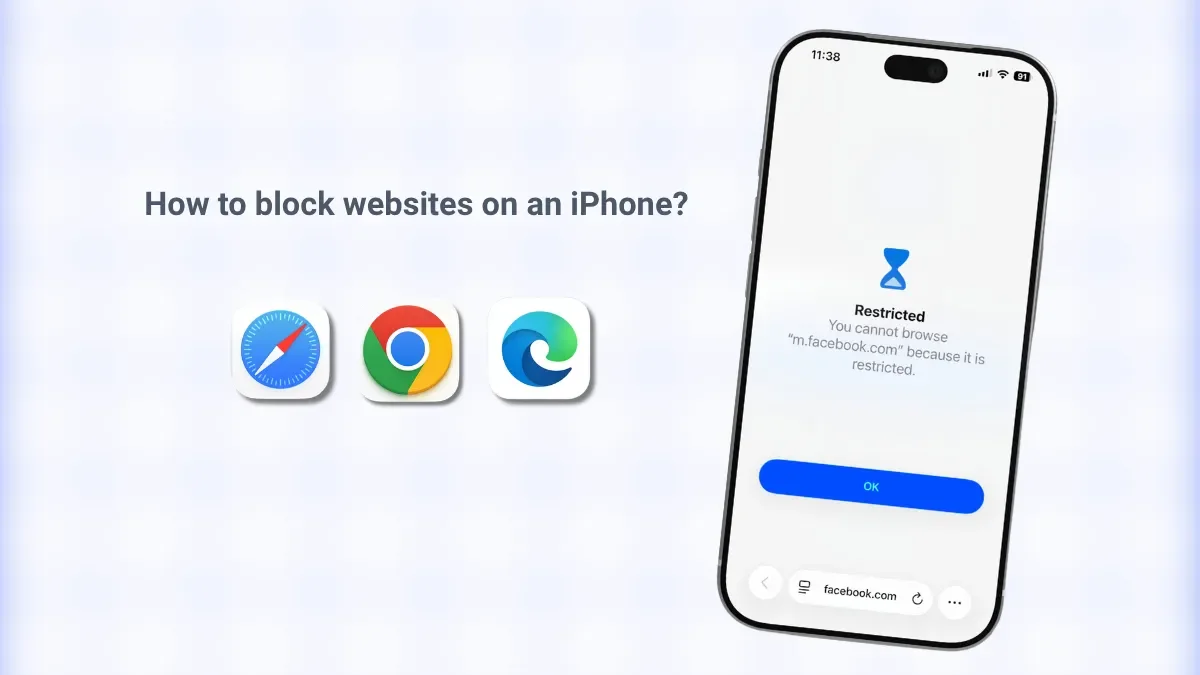
Blocking a website on iPhone is free and takes about a minute. Keeping that block in place is the harder part. Safari isn't the only door in, you can undo your own settings, and the urge that made you type the URL is still there after the page is gone.
This guide starts with Apple's built-in tools, then closes the gaps those tools leave open.
Too long, don't want to read:
- Block a site: Settings → Screen Time → Content & Privacy Restrictions → App Store, Media, Web & Games → Web Content → Limit Adult Websites → add the URL under Never Allow.
- Lock it: Settings → Screen Time → Passcode & Management → Lock Screen Time Settings (iOS 27), or Lock Screen Time Settings on iOS 26.
- Close gaps: block the matching app too, stop app installs, and test in Safari and Chrome.
- The urge: flag the app versions in EMBO, so opening them on impulse sends you to your EMBO device instead.
First, decide what you're trying to block
| Your goal | Best free setup |
|---|---|
| One or a few sites (reddit.com, tiktok.com, news sites) | Limit Adult Websites + those URLs under Never Allow |
| Almost the whole web, with a short allowlist | Only Approved Websites (nuclear option) |
| Adult content in general | Limit Adult Websites on its own |
| The same habit in an app and a browser | Block the website and limit or flag the app |
If your problem is mostly the app, not Safari, start with our guides on Blocking TikTok and Removing Ignore Limit. Web blocks alone won't catch the icon on your Home Screen.
Step 1: Block the site with Screen Time
These steps match Apple's Content & Privacy Restrictions path on recent iOS versions (menu names vary slightly by version):
1. Open Settings → Screen Time.
2. Tap Content & Privacy Restrictions and turn the switch on.
3. Tap App Store, Media, Web & Games (older iOS may say Content Restrictions).
4. Tap Web Content.
5. Choose one of the three options:
| Option | What it does |
|---|---|
| Unrestricted Access | No filter |
| Limit Adult Websites | Filters known adult sites, and lets you add your own under Never Allow / Always Allow |
| Only Approved Websites (also called Allowed Websites Only) | Blocks everything except a short list you approve |
For a specific site, choose Limit Adult Websites, tap Add Website under Never Allow, and type the address (for example tiktok.com or reddit.com). You usually don't need the https://.
On iOS 27 for a child's account, Apple's guides route website filtering through Settings → Family → [child] → Apps & Websites, with options including Limit Adult Websites, Approved Websites Only, and Ask to Browse. For your own phone, the adult Screen Time path above is still the free tool to use; confirm the labels on your device after updating.
Step 2: Lock the setting so you can't undo it in one tap
A website block with no passcode is a suggestion. Anyone holding the phone, including you at 11 p.m., can turn it off.
iOS 27: Settings → Screen Time → Passcode & Management → Lock Screen Time Settings.
iOS 26 and earlier: Settings → Screen Time → Lock Screen Time Settings.
Use a code that isn't your phone passcode. For it to hold, let someone else type it, and use their Apple Account for Screen Time Passcode Recovery. Our Ignore Limit guide covers that setup in full.
Step 3: Close the gaps Apple's filter leaves open
The matching app
Blocking tiktok.com does nothing to the TikTok app. Limit or delete the app as well, or flag it in EMBO.
Other browsers
Screen Time's Web Content filter is meant for Safari and, in practice, often covers other major browsers. Still test the blocked URL in Safari and in Chrome (or whichever browser you use). If a browser slips through, remove that browser under Allowed Apps, or set Installing Apps to Don't Allow so you can't add another one.
Reinstalls and workarounds
Under Content & Privacy Restrictions:
Set Installing Apps and Deleting Apps to Don't Allow.
Check that the site isn't also living inside another app's in-app browser.
Time Allowances vs website blocks (iOS 27)
A Time Allowance on an app only covers that app's website if the developer has linked the two. Don't assume an app limit blocks the site. For reliable website blocking, use Web Content → Never Allow.
Why a blocked page still isn't enough
A website block removes access. It does not remove the habit of reaching for the phone. When the page is gone, people often open the app instead, or another site in the same category.
That's the gap dedicated blockers try to fill with Strict Mode, timers and uninstall locks. Those tools can help when you need a hard software wall. They still leave the craving itself untouched: you hit a wall fifty times a day, and every wall is a negotiation.
Handle the urge with EMBO
EMBO doesn't replace a website block. It covers the part the block can't: the impulse to open the apps behind those sites.
1. Keep the Screen Time website block for Safari and the browser gaps.
2. In the EMBO app, flag the matching apps (TikTok, Reddit, news apps, and so on).
3. When you open one out of habit, a shield redirects you to your EMBO device.
4. Hold EMBO. Gentle pulses at a heartbeat-like 1–2 Hz rhythm target the median nerve in your palm, which has been linked to calming parasympathetic activity. The urge usually fades within a few minutes.
5. If you still need the site for real work afterward, you can open it on purpose. Now it's a decision.
EMBO is a one-time purchase with no subscription. It doesn't lock your phone, so Maps, messages and work tools stay available. See how EMBO works.
Which setup fits you?
| You are… | Do this |
|---|---|
| Blocking a few distracting sites for yourself | Never Allow + a passcode someone else holds + EMBO for the apps |
| Setting rules for a child on iOS 27 | Family → child's Apps & Websites filters, plus Ask to Browse if needed |
| Mostly using the app, not the browser | Limit the app first; add Never Allow as a backstop |
| Still opening the site through another browser | Remove extra browsers and lock app installs |
The bottom line
To block websites on iPhone for free, use Screen Time's Web Content filter, put the URLs under Never Allow, and lock the settings with a passcode. Then close the side doors: the matching app, other browsers, and reinstalls. What no filter covers is the urge that sends you looking for those doors. Catch that at the moment you reach for the app, and the block finally has a chance to stick.
Fix the Brainrot and Regain your Focus
EMBO helps you ride out the urge to grab your phone, so focus comes back as a habit rather than a fight. It's a one-time purchase with the app included and no subscription.
Frequently Asked Questions:
-
Yes. Use Settings → Screen Time → Content & Privacy Restrictions → Web Content, choose Limit Adult Websites, and add URLs under Never Allow. Lock the settings with a Screen Time passcode so you can't undo them in one tap.
-
"Permanent" on a phone you own means a passcode you don't know. Set Lock Screen Time Settings, let someone else choose the code, and use their Apple Account for recovery. Without that, any block is temporary.
-
No. Block the website under Web Content and separately limit, delete or flag the app.
-
Often yes, but always test. If a browser still opens the site, remove that browser or stop new app installs.
-
Apple's built-in Web Content filter uses full site addresses, not keywords. For keyword-style blocking you need a third-party tool. EMBO works on the app open, not on URL keywords.
Sources
Apple Support, Block or allow access to apps and websites on your child's device and Ask to Browse
Technobezz, How to Block Websites on iPhone (iOS 26 menu path)
AppBlock, How to Block Websites on iPhone
AUTHOR
Alonso Arribas
Founder and CEO, EMBO
Alonso is the founder of EMBO. He holds a Bachelor in Biomedical Engineering from University of Maryland and University Carlos III, and has actively taken part in the end-to-end design and production of EMBO, both the physical device and the app.
